One place to manage every signature
Create and update Outlook signature templates centrally instead of asking each employee to edit their own.

Outlook Signature Guide
Changing an email signature in Outlook is easy when you manage only your own inbox. The real problem starts when a company needs to keep signatures updated for 20, 50, or 500 employees.
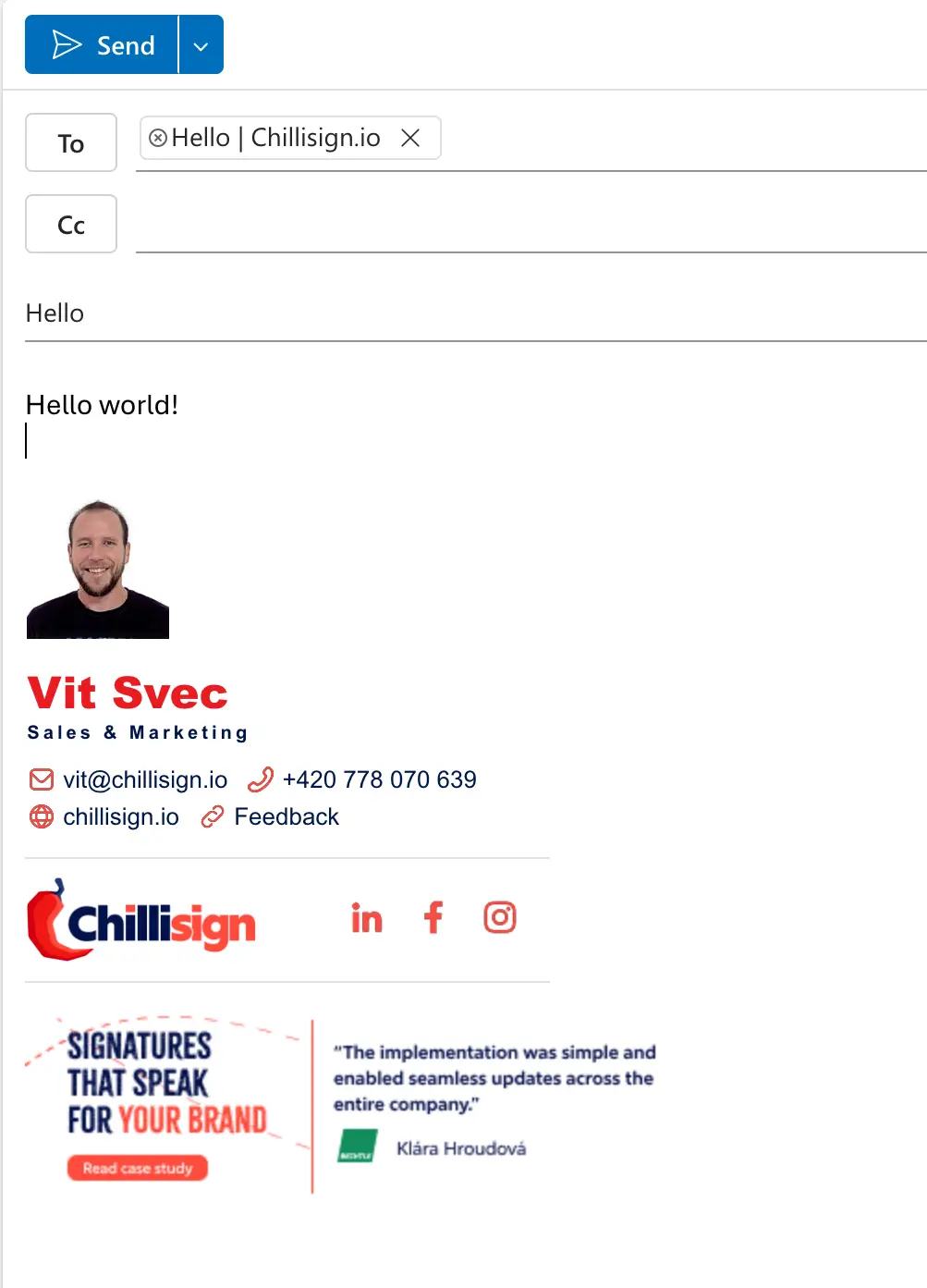
A signature is not just a name and phone number. In a business environment, it usually includes a company logo, job title, legal notice, social links, and sometimes a marketing banner. If every employee updates it manually, inconsistencies appear quickly.
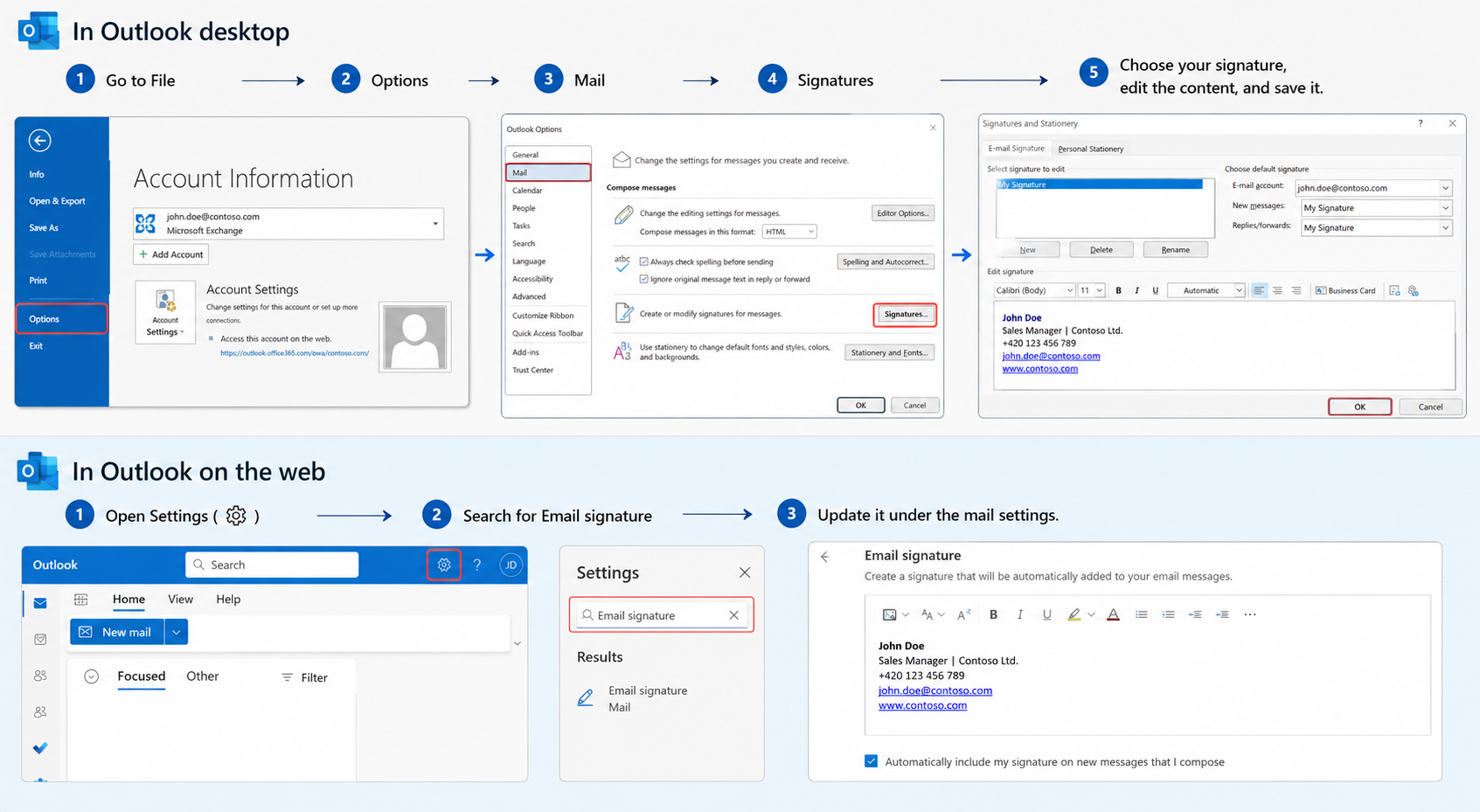
In Outlook desktop, go to File → Options → Mail → Signatures. Choose your signature, edit the content, and save it.
In Outlook on the web, open Settings, search for Email signature, and update it under the mail settings.
This is enough for a personal signature. But for a company, this method is fragile. Every employee has to copy the right version, use the correct logo, keep the same formatting, and update it again whenever something changes.
That is not a process. It is a recurring source of small mistakes.
Manual signature management may work in a very small team. But as the company grows, every change becomes harder to control.
Common issues include outdated job titles, wrong phone numbers, missing links, stretched logos, broken HTML, old disclaimers, and different versions of the same company signature.
Marketing banners make the problem even more visible. If your company wants to promote a webinar, product, event, case study, or seasonal campaign, the banner needs to appear at the right time and in the right signature.
If the update depends on every employee copying a new version manually, the campaign loses speed before it starts.
For companies using Microsoft 365, centralized email signature management is the better option.
Instead of asking employees to update signatures themselves, the company creates templates in one place. Users can then receive the correct signature based on their team, department, location, or role.
When something changes, the update is made once. The new logo, contact details, legal text, or campaign banner can then be reflected across selected users automatically.

This saves time for IT, keeps marketing in control, and helps the company maintain a consistent brand in every email.
Chillisign is built for companies that want professional HTML email signatures without manual copying, broken formatting, or endless internal reminders.
With Chillisign, you can create branded signature templates, assign them to users, and manage updates centrally. Each signature can include contact details, company logo, social links, legal text, and dynamic marketing banners.
For Microsoft 365 environments, Chillisign offers an Outlook Add-in that can be deployed centrally through Microsoft 365 Admin Center. Employees do not need to install signatures one by one or paste HTML into Outlook manually.
Once everything is set up, signatures can be automatically loaded into Outlook. When you update a template or campaign banner in Chillisign, the change can be reflected across your team without asking every employee to do anything.
Manual setup is fine for individuals. But if your company already needs instructions, screenshots, reminders, or follow-ups every time a signature changes, it is time to automate the process.
Centralized signature management helps your company keep every Outlook email consistent, professional, and up to date.
No copying. No old banners. No broken formatting.
Just one controlled place for signatures that spice up every business email.
Create and update Outlook signature templates centrally instead of asking each employee to edit their own.
Employees no longer paste HTML or recreate formatting by hand every time something changes.
Every signature keeps the same logo, contact details, and legal text, no matter who sends the email.
Campaign banners can be swapped centrally and reflected across selected users automatically.
The same managed signature applies whether employees use Outlook desktop or Outlook on the web.
Fewer support tickets about outdated signatures, broken logos, or formatting issues.
Changing a signature in Outlook manually takes a few clicks. Keeping hundreds of signatures accurate, on-brand, and up to date is a different challenge entirely.
Chillisign helps companies move from manual, error-prone updates to a single controlled place for every Outlook signature and campaign banner.
Try Chillisign for free and keep every Outlook signature in your company consistent.
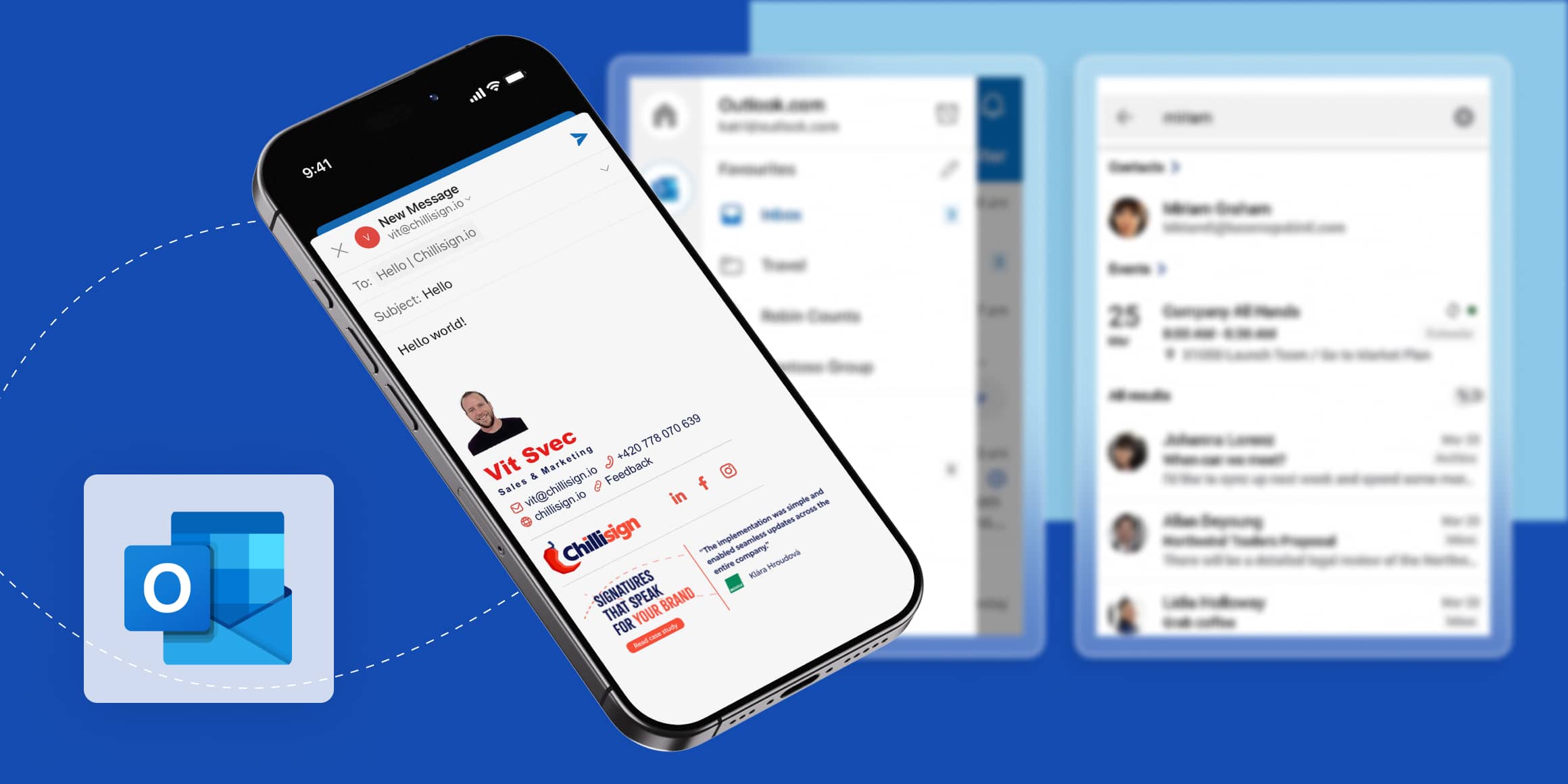
A professional email signature should not disappear when your team replies from a phone. See how Chillisign Mobile Add-in inserts your company signature into Outlook mobile emails automatically – consistent across desktop and mobile.
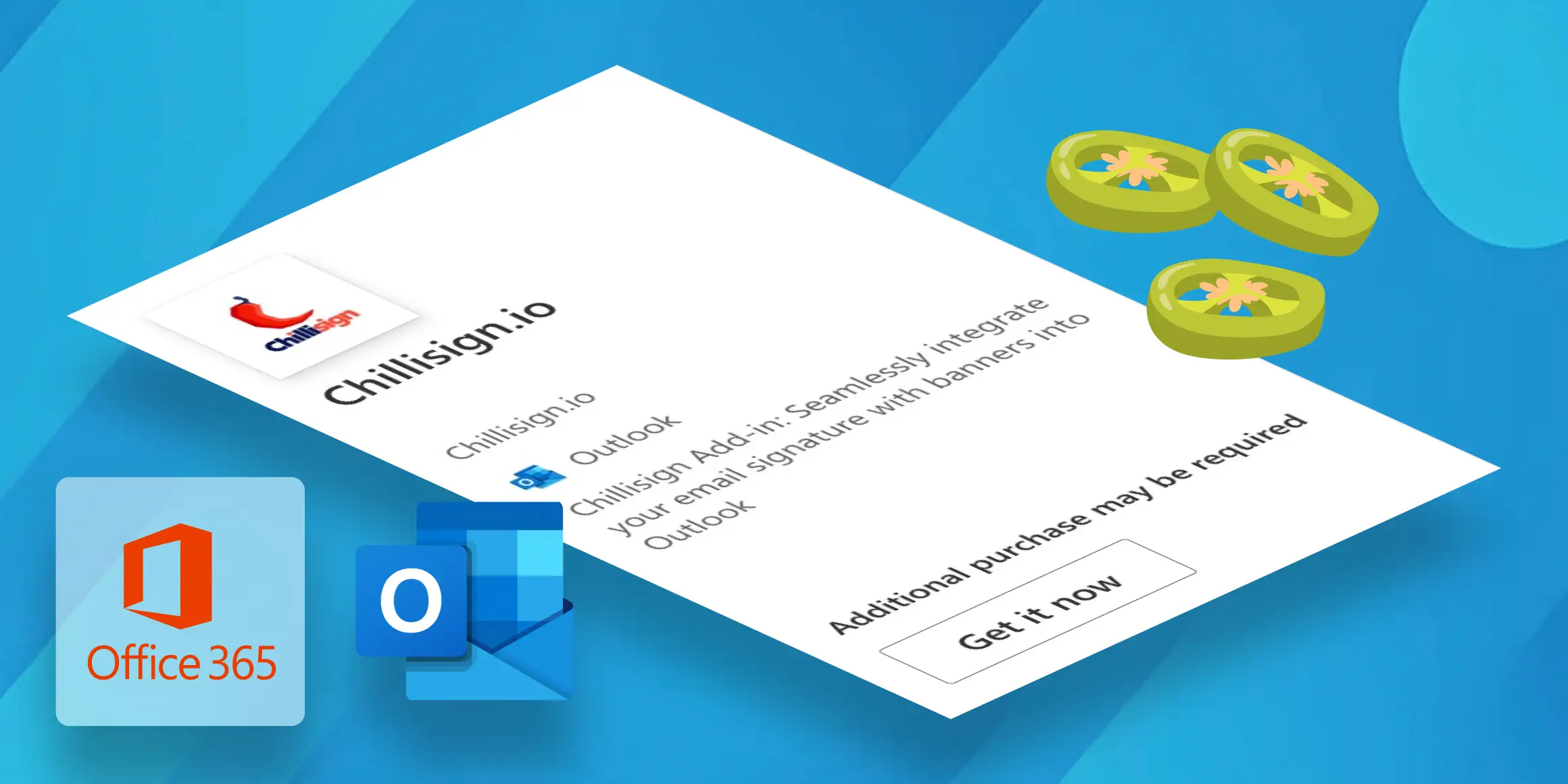
Install the Chillisign.io Outlook Add-in via the Microsoft 365 Admin Center to achieve automatic synchronization and centralized management of email signatures within your organization.

Email signatures are not just contact details – they are an effective marketing tool. Get a professional look, strengthen your branding, and use advertising banners directly in emails. Add a dash of spice to your communication with Chillisign!

