Consistent Outlook mobile signature
The same professional signature experience in Outlook mobile that employees already have in Outlook on desktop.

Now available in Outlook Mobile
Keep your company signature consistent. A professional email signature should not disappear the moment your team starts replying from a phone.
For many companies, Outlook on desktop is already covered. Employees have a unified HTML signature, correct contact details, company logo, social links and sometimes even dynamic marketing banners. But once the same person replies from the Outlook mobile app, the signature often becomes plain, inconsistent or completely missing.
That is exactly the gap Chillisign Mobile Add-in is designed to solve. The company signature that is already set for a user in desktop Outlook can now be automatically inserted into emails composed in Outlook on mobile devices. The user simply writes an email in the Outlook mobile app, and the correct Chillisign signature is inserted into the signature area.
Just one consistent signature experience across desktop and mobile.
Business communication no longer happens only at the desk. Sales teams reply between meetings. Managers approve things while travelling. Consultants communicate directly from client sites. Support teams answer urgent questions from wherever they are. And in all these moments, the email still represents the company.
A mobile email signature is not just a small technical detail. It affects how your brand looks in everyday communication. When mobile signatures are not managed properly, companies often face the same problems:
For a small team, this may look like a minor inconvenience. For a company with dozens or hundreds of employees, it quickly becomes a brand consistency issue. Chillisign helps keep every email ending sharp, polished, and on-brand, no matter if it is sent from a desktop computer or a mobile phone.
Many people search for things like “how to add signature in Outlook mobile” or “Outlook mobile signature same as desktop” because they expect a simple native solution.
In practice, mobile signatures are often handled separately from desktop signatures. That means employees may need to manually create or paste their signature into the mobile Outlook app. For basic text signatures, this can sometimes be enough. But for modern company signatures with HTML layout, images, banners, social icons and brand styling, manual setup is rarely ideal.
Instead of treating mobile as a separate channel, Chillisign connects it to the same signature logic your company already uses.
The signature assigned to a specific email address in Chillisign and used in desktop Outlook is automatically inserted into the place where the signature belongs when the employee writes an email in the Outlook mobile app. It is very simple:
From the user’s perspective, there is almost nothing to learn. From the company’s perspective, the benefit is much bigger: mobile emails finally become part of the same controlled brand environment as desktop emails.
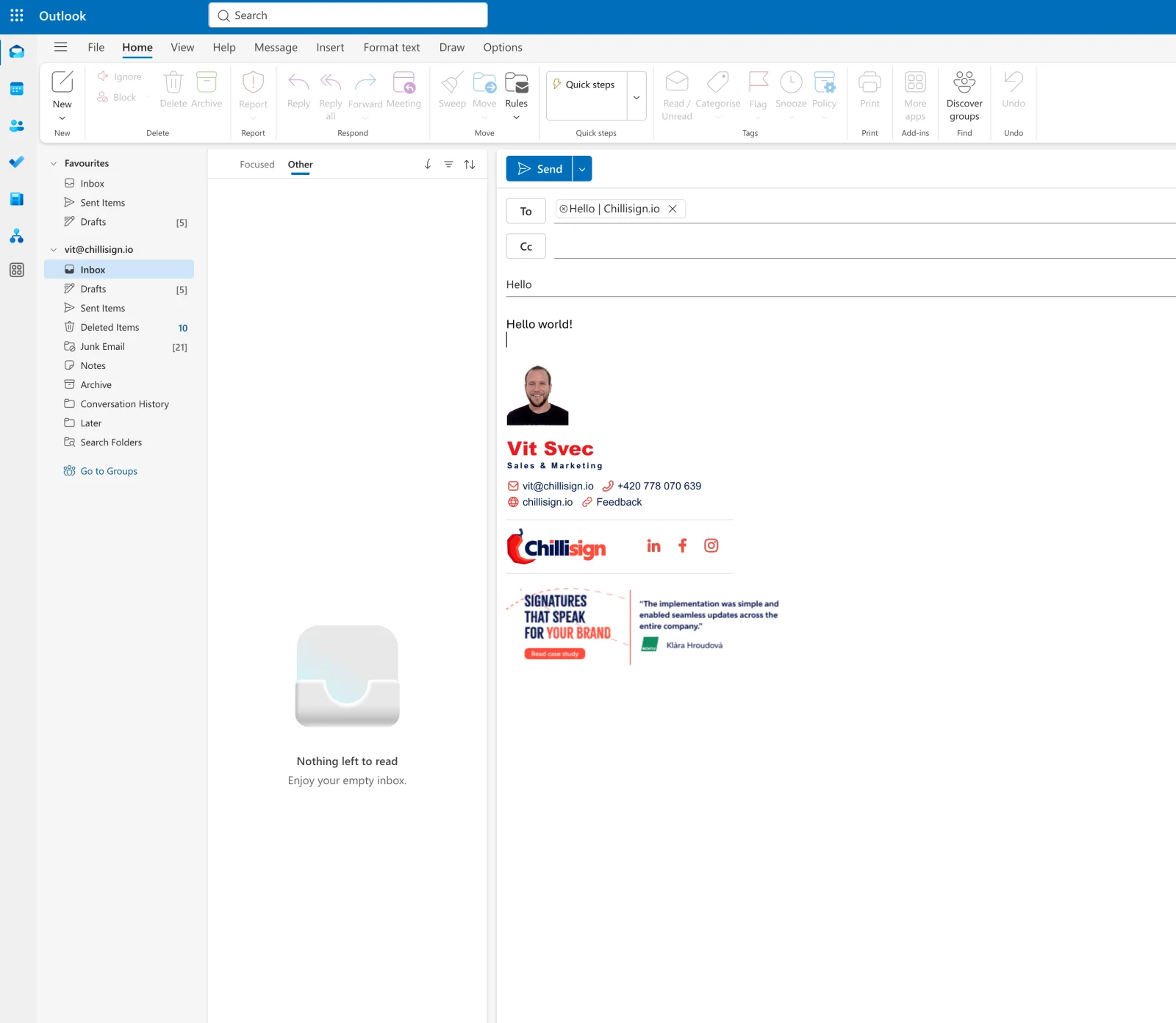
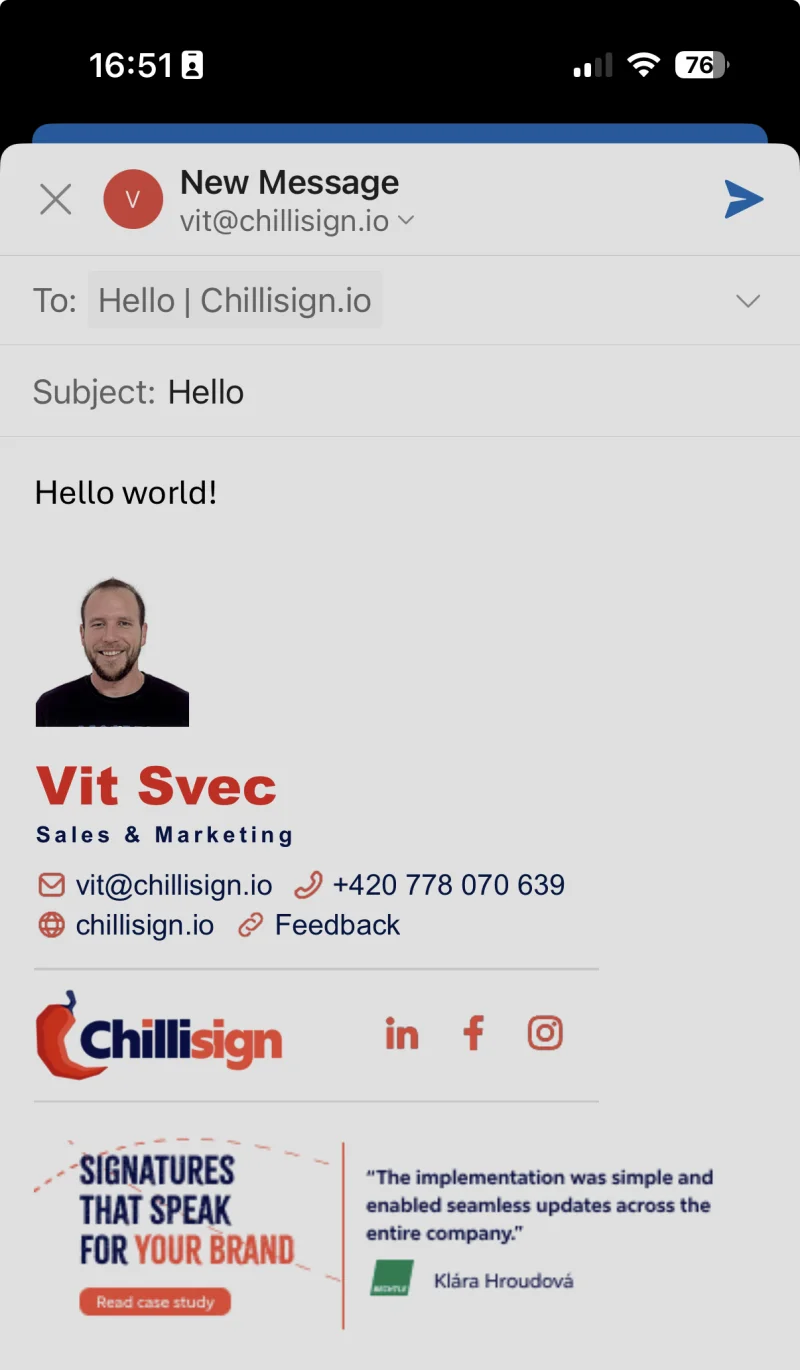
The biggest advantage is consistency, and the overall impression stays professional. For marketing teams, this means every email remains a potential brand touchpoint. For IT teams, it means fewer manual requests and less troubleshooting. For sales teams, it means no interruptions to banner campaigns when using mobile devices. And for employees, it means they can simply write emails without thinking about signatures at all.
Mobile signatures are especially important for companies where employees communicate frequently outside the office. Sales teams can keep campaign banners in their replies even when they answer from the road. Managers can maintain a professional brand presence while communicating from events or business trips. HR teams can continue promoting open positions or employer branding content. Customer support teams can send mobile replies that still look like part of the same company communication.
Because the signature is managed centrally, employees do not need to adjust anything manually when a banner changes or when the company updates its visual style.
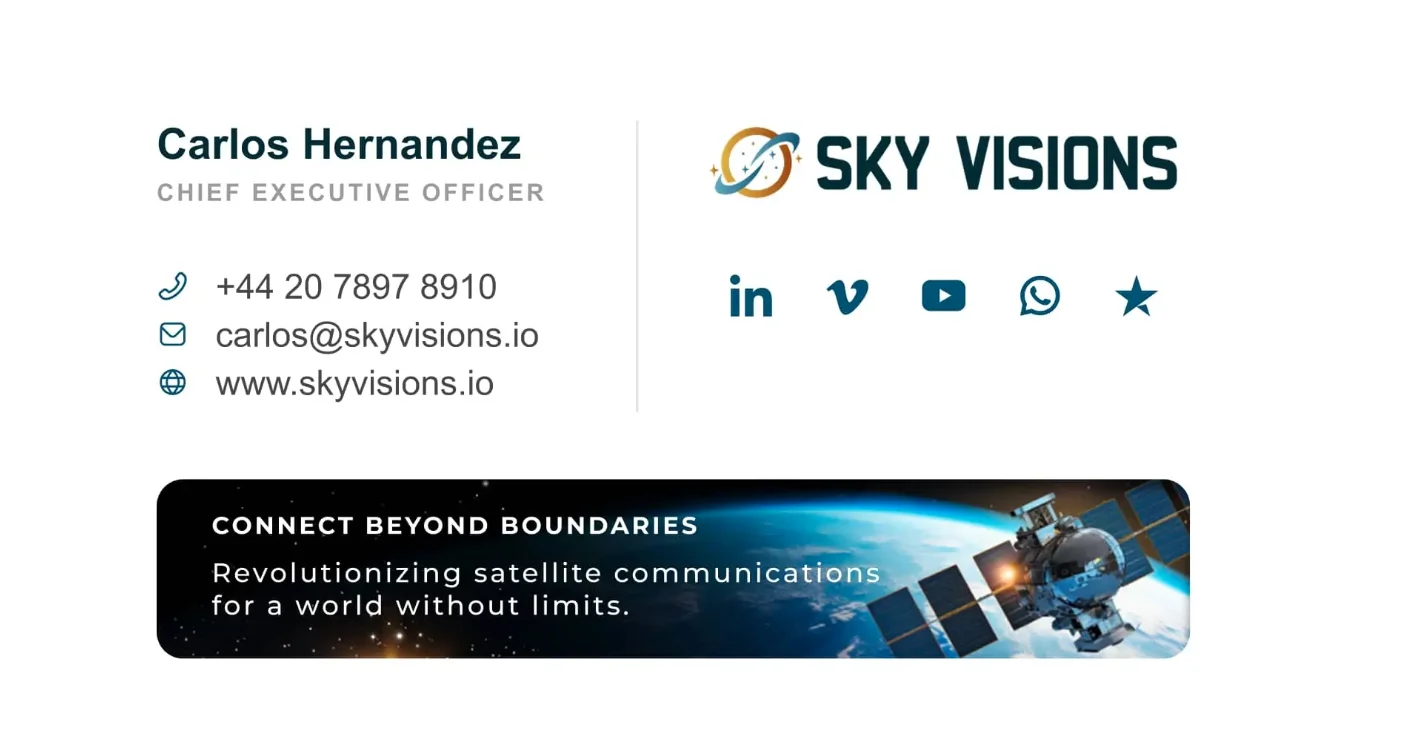
Email signatures are often seen only as contact information. But for modern companies, they are much more than that. A well-designed signature can support brand trust, promote important content and guide recipients to the next action. With Chillisign banners, companies can use email endings for campaigns such as:
The same professional signature experience in Outlook mobile that employees already have in Outlook on desktop.
No copying, pasting or formatting signatures directly on mobile devices. The signature is inserted automatically when writing an email.
The company keeps control over how signatures look, what information they contain and how they support the brand.
Marketing banners can remain part of everyday communication, even when employees reply from their phones.
Mobile communication becomes part of the same signature system as desktop, ideal for teams that work flexibly or travel often.
Mobile email communication is too important to leave unmanaged. If your company already uses professional signatures in Outlook desktop, the next natural step is to make sure the same quality continues in Outlook mobile.
Chillisign Mobile Add-in helps close this gap by inserting the correct company signature into mobile emails automatically. Create unified HTML signatures, manage campaign banners centrally and make every email ending a little spicier.
Try Chillisign for free and keep your company signature consistent across desktop and mobile.
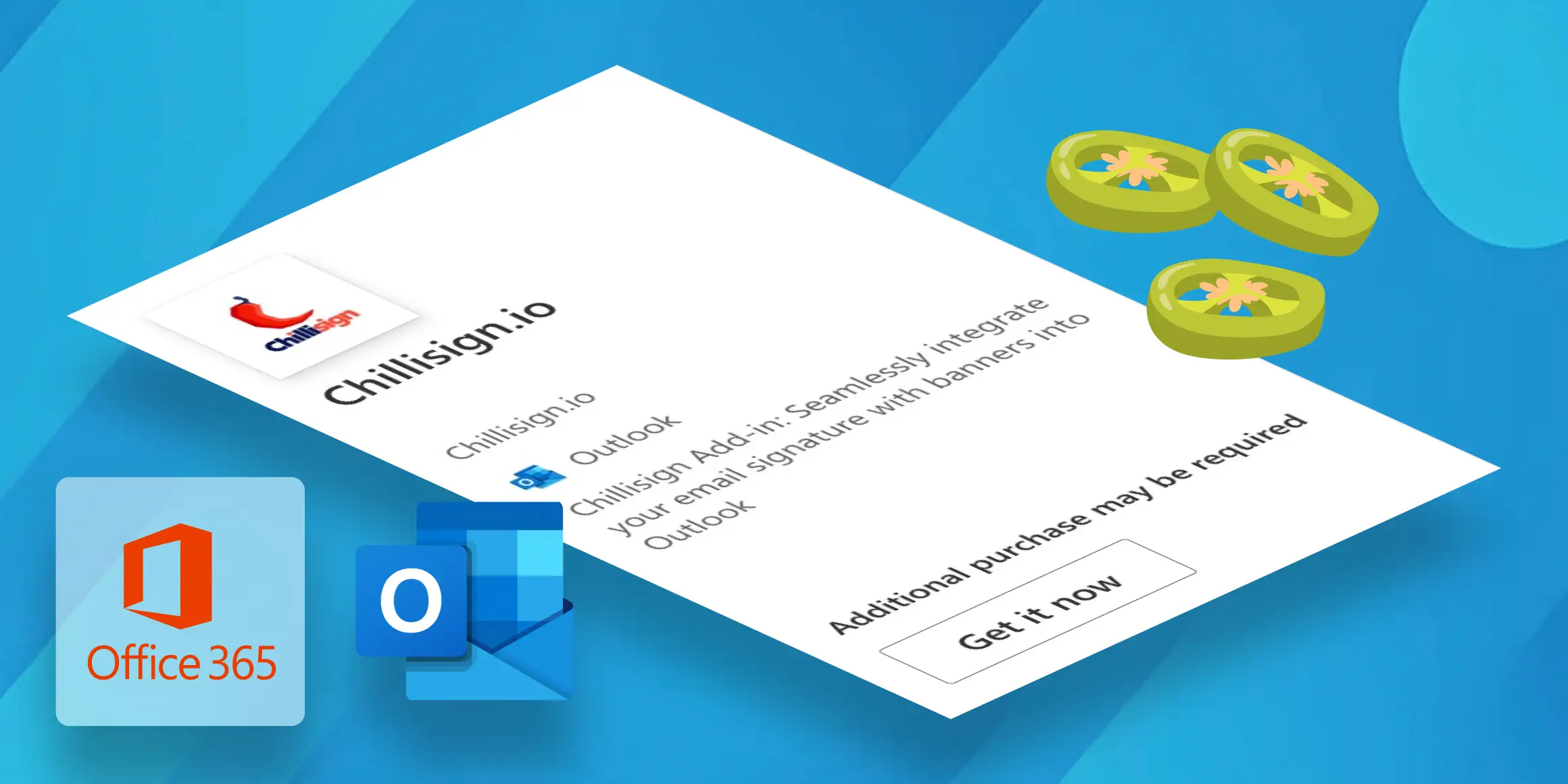
Install the Chillisign.io Outlook Add-in via the Microsoft 365 Admin Center to achieve automatic synchronization and centralized management of email signatures within your organization.
Email signatures are not just contact details – they are an effective marketing tool. Get a professional look, strengthen your branding, and use advertising banners directly in emails. Add a dash of spice to your communication with Chillisign!

Turn open email threads into micro campaigns. Learn how to design and run seasonal banners for Black Friday, the holidays and January, target teams and measure results with clarity.

